How to Make Custom AI Stickers for iMessage (No App Needed)
Making custom stickers for iMessage used to mean either downloading a dedicated sticker app, learning design software, or paying someone to make them. That's changed. With an AI sticker generator like StickerForge, you can describe anything you want and get four unique, ready-to-use stickers in seconds — all in a browser tab, no download required.
This guide covers exactly how to do it, from generating your sticker to adding it to the iMessage sticker drawer. The whole process takes about three minutes.
What you need
- ✓An iPhone running iOS 17 or later (the sticker drawer feature)
- ✓Any browser — Safari on iPhone works great
- ✓Nothing else. No apps, no subscriptions, no Photoshop.
Note: The sticker drawer in iMessage was introduced in iOS 17, released September 2023. If you're on iOS 16, you can still save stickers to Photos and share them as images in conversations — they just won't live in the sticker drawer.
Step 1: Generate your stickers on StickerForge
Open stickerforge.app in your iPhone's browser (Safari works perfectly — no special browser needed). Sign in with Google or Apple, then type a prompt describing what you want.
A few prompts that tend to produce great stickers:
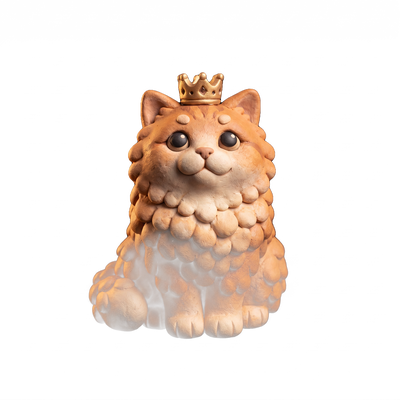
- "a sleepy cat wearing a tiny crown"
- "a mushroom with a surprised face"
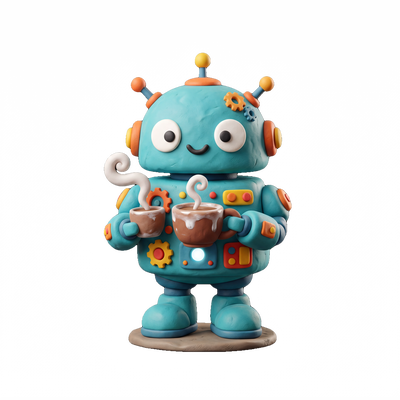
- "a little robot holding a coffee cup"
- "my dog (golden retriever, floppy ears) as a cartoon"
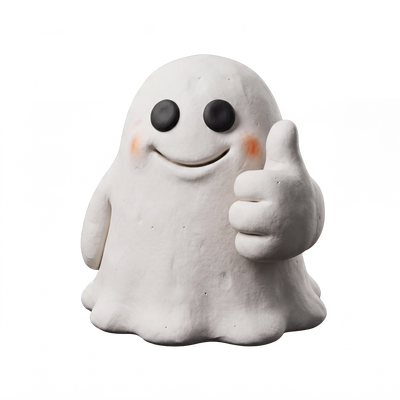
- "a ghost giving a thumbs up"
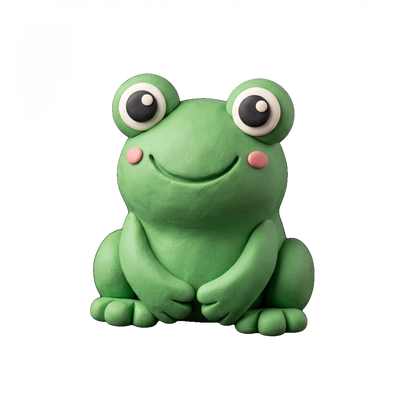
StickerForge generates four variations every time. They'll all have the same clay-style aesthetic — soft, rounded, and a bit puffy — but each one is a little different. Pick the ones you like.
Step 2: Save the sticker to your Photos
Once your stickers appear, tap and hold any sticker image, then tap Save to Photos. You can also download it as a file if you prefer, but saving to Photos is the fastest path to iMessage.
The sticker images have transparent backgrounds, so they're ready to use exactly as-is — no cropping or editing required.
Step 3: Add it to iMessage
There are two ways to use your sticker in iMessage. The sticker drawer method is better if you want to use the sticker repeatedly — it lives in your drawer permanently. The quick share method is faster for a one-off.
Method A: Add to the sticker drawer (recommended)
- 1Open Messages and tap any conversation.
- 2Tap the + icon to the left of the text field.
- 3Tap Stickers (the smiley face icon).
- 4Tap the + button in the top-left corner.
- 5Select the sticker image you just saved from your Photos.
- 6Done — it now lives in your sticker drawer.
Method B: Quick share as a photo
- 1Open a Messages conversation.
- 2Tap the + icon → Photo.
- 3Select the sticker from your Photos library.
- 4Send it like any image.
Tips for better stickers
Be specific about expressions
Instead of “a cat,” try “a grumpy cat with crossed arms.” Emotional expressions make stickers much more useful in conversation.
Generate a few packs around themes
“Celebrations” (party hat frog, confetti cat, cheering robot), “Reactions” (shocked face, eye-roll, thumbs up) — thematic packs make your sticker drawer much more useful.
Describe your pet or a friend
Stickers based on real things — “my calico cat, orange and white, big green eyes” — land differently than generic ones. People in the conversation will recognize them immediately.
Why a browser-based sticker maker beats a dedicated app
There are plenty of sticker maker apps on the App Store. Most of them are iOS-only, require a download, and ask for a subscription before you can do anything useful.
A web-based AI sticker generator has a few real advantages:
- →It works on any device: The same tool works on your iPhone, your Android phone, your Mac, your Windows PC, and your iPad — without installing separate apps on each one.
- →There's nothing to update: Web apps update silently in the background. You always have the latest version without touching your App Store.
- →Lower friction for sharing: You can send someone a link to StickerForge and they can start making stickers immediately — no install barrier.
Ready to make your own?
Free to start. No download. Works in your browser right now.
Make stickers on StickerForge →Related